
Monday, 4 April 2011

Creating part for the transformation

In 'The spy who loved me' the Lotus Esprit S1 has transform to a submarine, so I create extra part for the model.
First I create a plane in the front viewport, change to the size I want and have 1 length segs and 4 width segs, convert to editable poly.
In the modify panel, select vertex and change the shape of the plane. Open material editor and apply the same colour as the body of the car, copy and paste for the other side and use mirror to have the plane facing the right way.


Next I need to create the hydrowings, so I have create a box in the front viewport, with 1 length and width segs, convert to editable poly, set material ID to 1 and use swiftloop to add an horizontal loops at the middle and two more at the top set the material ID to 2, select vertex and drag the vertex in the middle out, then apply meshsmooth and turbosmooth.

Under water

Create a plane at the top viewport with length to 1000, width to 500, and have segs for length and width to 200.
Select the modify panel and choose displace from the modifier list, go to displacement rollout, strength to 17 and image, map to noise.
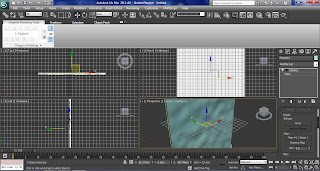


Open material editor, drag and drop the noise map to the slot and select instance, at the parameters, noise parameters, have noise type to turbulence, level to 10 and size to 300.
Click on the second material slot, get material and select Arch & Design from the list, Select template from the drop-down list, choose Water, Reflective Surface, with transparency to 1.0.Go to advanced trasparency option, glass / translucency treat objects as Thin-walled. At the special purpose maps, have largest to 100, smallest to 1, quantity to 20 and steepness to 5.
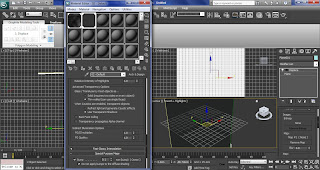


Open environment settings, background, turn on use map, in environment map choose gradient ramp. Then open material editor, drag and drop the Gradient Ramp map to a slot, select instance, at coordinates rollout, mapping to spherical environment, gradient ramp parameters rollout, flag1 have dark blue colour and flag to have light blue colour, noise amount to 1, type fractal, size to 2 and levels to 10 and output amount to 3.

Create a target camera in the top viewport and a mr area spot in the front viewport, go to the modify panel, general parameters, turn off shadow, Intensity/Color/Attenuation, multiplier to 2.
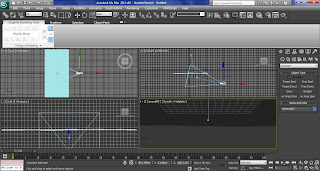


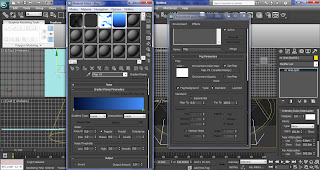
Open environment settings, go to the atmosphere settings and click add fog, turn on use map and choose gradient ramp. Then open material editor, drag and drop the gradient ramp map, in mapping choose screen, angle w to 90, flag dark blue to light blue and output amount 1.5.
Select camera and go to the modifier panel, environment ranges, tuen on show, near range to 200 and far range to 810.

At the environment settings, atmosphere add volume light and pick the area spot, have density to 7.
Select area spot, modify panel, Intensity/Color/Attenuation, colour to blue, use far attenuation, start at 430, end at 650, advanced effects, projector map, noise. Drag and drop the noise map to a material slot, coordinates, source choose explicit map channel. In noise parameters, choose turbulence for noise type, levels to 10, 0.05 for size and 0.35 for low.


To add bubbles to the scene, I have use PCloud, creat PCloud in the left viewport, go to modify panel and in basic parameters, display icon, rad/len to 230, width to 700, height to 480. In particle generation, particle quantity, use total to 1000, particle timing, emit start to -10, particle size to 1.5, variation to 100 and 0 for grow and fade. Choose sphere for standard particles.

Open material get material and choose Arch & Design from the list, select glass from the termplate fromthe drop down list and assign the material to the PCloud.
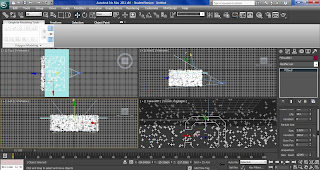


The rendering has taking a long time for just 1 scene, so I decided to take off the volume light effect to increase the rendering speed and the out come is shown below.

Reference:
polygonblog
2011
3D Underwater Scene
http://www.polygonblog.com/3d-underwater-scene
[Internet]
[04/4/2011]

Gun barrel

I need to create a gun barrel for my animation, first I draw a line in the top viewport, and change the length to 2000, then create a tube with radius1 to 54, radius2 to 50 and height to -2000, have the height segments 1 and 28 at the sides.
Then convert it to editable poly, select edge tool and click on the vertical edge, loop and ring select all of them, then chamfer them to 0.75. Select polygon, highlight all the faces of the tube and change the material ID to 1.


Select all the large faces that are inside the tube and use extrude to extrude the faces out about 0.8, then scale the faces, so is parallel and set their materiel ID to 2


Set up a free camera inside the tube, go to the motion panel, assign controller, position: position to path constraint and add the line to path.


Put a omni light at the end of the tube, go to the modify panel, turn on ray traced shadows, inverse decay, turn on the use, show for near and far attenuation. For near attenuation end at 52cm and far attenuation start at 52cm, end at 500cm and diffuse only.


Open material editor and select multi/sub-object, set number to 2, the first ID is black, second ID add a noise bump map with 1 value and raytrace to reflection with 40%, change the bump map effect to 0.1, then assign the material on the tube.

Go to the modifier panel and use the edge tool, select all the length edge, at the edit edges rollout, use connect and enter 80 to segments.


From the modifier list add twist to the tube and angle to -540, then add mesh smooth and smooth by group.


Reference:

cr8vcow
2009
Explosion Tutorial
http://www.viddler.com/explore/cr8vcow/videos/11/160/
[Internet]
[4/4/2011]

Sunday, 3 April 2011

Explosion


First I select helpers panel, choose atmospheric apparatus and create a sphereGizmo in the viewport. Go to the modifier panel, atmospheres & effects rollout and add fire effect. Have the flame type tendril, flame size 20, inner colour light yellow and outer colour orange. Then put a light orange omni light inside the sphereGizmo.


Select Geometry, particle system and create a SuperSpray inside the sphereGizmo, in the basic parameters rollout, have off axis, spread to 90, off plane to 0 and spread to 180. Goto particle generation, use rate to 20, speed to 5, variation to 50 and particle size tp 30. Have particle type to tertra, in rotation and collision, set to, Direction of travel/MBlur to 15 and right click on the SuperSpray and set object ID to 1.

Open material editor, and choose Arch & Design from the list and turn on self-illumination, then apply it to the SuperSpray.


Go to rendering, video post, click add scene event, select Perspective from the list of viewports and press OK. Click on add image filter event, and add a lensflare and press setup.
Select load, AFTERFX3.lzf file that are pre-included with MAX, click glows and change the colour to red, then click manual secondries, set the size to 180 and colour to red and orange, select node sources and choose omni light, press ok.


Next is to add a lens flare glow, go to setup and have the object ID to 1, size to 0.2 and colour to pixel.


Select the image output event and hit files in the dialog box, name it, save it and render it.

Reference:
TFRAkira213
2011
Explosion Tutorial
http://www.3dm3.com/tutorials/explore2/
[Internet]
[3/4/2011]

Come to life sackboy


Use what I have learn about biped, I have apply it on my animation character sackboy.
From the systems rollout, select biped and drag it out in the front viewport. Go to the motion panel and select figure mode, move the skeleton inside sackboy, and change the size of the skeleton. To save time, I can only change one side of the skeleton, select the part I want to copy and go to the motion panel, copy and paste rollout, click create collection, posture, then copy and paste posture opposite, this has copy the part I have selected and paste to the opposite side, then turn off figure mode.


Select sackboy, go to the modifier panel and choose physique from the modifier list, select attach to node from the physique rollout and click on the node inside the skeleton.

This time instead of just using link for selection level, I have use control point is well, this give me more control over the envelope, so if the parent or child overlap is too big, I can manually scale it down.


Next I apply the automatic footsteps, select the biped and click the motion panel. Click footstep mode, and at the footstep creation rollout, I choose walk and create multiple footstep button. I have set the number of footsteps at the dialogue box and click ok. Select create key for inactive footsteps to finish the automatic footsteps. Then I apply run and jump to the automatic footsteps, using the same technique.


Next I wanted to create some grass, so I create the ground using plane with 100 length segs and 100 width segs.
Draw a rectangle with 7.78 length and 0.2 width in the left viewport. Then use the line tool to draw a big triangle inside the rectangle and delete the rectangle after.


Next I need to add some vertices to the object and bend it, go to the modify panel and active the Segment sub-object level and select the two vertical segments, and 5 for divide. Apply bend and have the angle to 58, direction to 90 and bend axis to y.


Activate Center sub-object level in the Bend modifier and move the center of the modifier to the bottom of the line.


Turn the grass into a scatter object by select create panel, compound objects and scatter. Have the scatter setting with pick distribution object to the plane, scatter object, duplicates about 20000, perpendicular off, distribute using random faces, transforms rotation y to 180 and x, z scaling y to 25, display hide distribution object on.


Open the material editor select both object and apply a new material to them, turn on 2 sided, have green colour, specular level to 30, glossiness to 0 and soften 1.0.


Reference:
polygonblog
2011
3D Grass and Sky
http://www.polygonblog.com/3d-grass-and-sky
[Internet]
[03/4/2011]

Biped


Create a character in the viewport, go to systems rollout, click biped and drag out the biped skeleton in the front viewport.


Select the skeleton and click on the motion rollout, biped, figure mode. Move the skeleton inside the character and use the move and scale tool to move the skeleton, so it has the same size and position to the character, then click on figure mode again to turn it off.
Click on the character, go to the modifier panel and choose physique from the modifier list, then click attach to node from the physique rollout and click on the node inside the skeleton.
If I move the leg now, some part of the character have stay at the same place. To fix this I click on the plus sign of physique and select envelope, click on one of the yellow that I want to change and change the value of radial scale from the envelope parameters.


To create automatic footsteps, I select the biped and click the motion panel. Click footstep mode, and at the footstep creation rollout click walk and create multiple footstep button. Set the number of footsteps at the dialogue box and click ok. Then to make the character walk click create key for inactive footsteps and select play.

Bone


First I create a cylinder in the front viewport, convert to editable poly.
Select system rollout and bones then click on the front viewport, click and drag the amount of bones I need, use the move tool to move the bone in the middle of the cylinder.


Highlight cylinder, go to the modifier panel and choose skin from the modifier list. From the parameters rollout, click add and select all the bones, so this link the cylinder and bones together.